
The SCL Tax Services Client Portal gives you secure, 24/7 access to your tax documents and account information. Instead of calling the office for routine requests, you can manage many tasks online whenever it’s convenient for you.
Through the Client Portal, you can:
- Check the Status of Your Tax Refund
- Get a Copy of Your Tax Return
- Get a Copy of Any Document You submitted to Us
- Send Questions/Notes/Attachments to Our Team
- Upload Documents
- Provide Client Feedback
- Request an Appointment
- Confirm/View Your Client Referrals to Us
- Update Your Address/Email/Phone/Password
The SCL Tax Services Client Portal gives you secure, convenient access to your tax information whenever you need it. Instead of calling the office for routine requests, you can log in anytime to view your account, check your refund status, download copies of your tax returns, and securely upload documents.
All files shared through the portal are encrypted and password protected, providing a safer way to exchange sensitive tax information than email. As identity theft and online fraud continue to increase, using the Client Portal helps protect your personal and financial data.
Once your tax return is completed, we’ll upload your tax return and supporting income documents directly to your portal for easy access. If you need copies of returns or documents from previous years, simply send us a request through the portal, and we’ll make them available to you.
During tax season, our office receives a high volume of calls and requests. The Client Portal allows you to access many of the documents and information you need without waiting for office assistance, saving you time while helping us provide faster service to all clients.
We’re committed to improving our services each year, and the Client Portal is an important part of that commitment. If you experience any issues while using the portal, please let us know. We’ll be happy to help.
To get started, follow the instructions below to create your Client Portal account and log in for the first time.
On the client portal you will see:
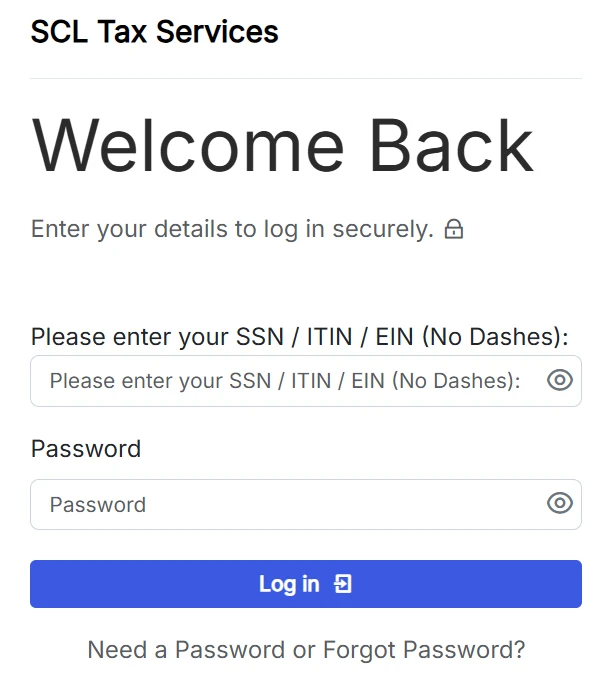
In the first field, enter your Social Security Number (SSN), Individual Taxpayer Identification Number (ITIN), or Employer Identification Number (EIN) without dashes.
✔ 123456789
✘ 123-45-6789
Then type the password associated with your Client Portal account and Select the Log In button to securely access your account.
Tip: If you’re logging in for the first time, use the “Need a Password or Forgot Password?” link to create your initial password.
If you’ve forgotten your password or don’t have one yet, you’ll see the screen below after selecting Need a Password or Forgot Password? from the login page.
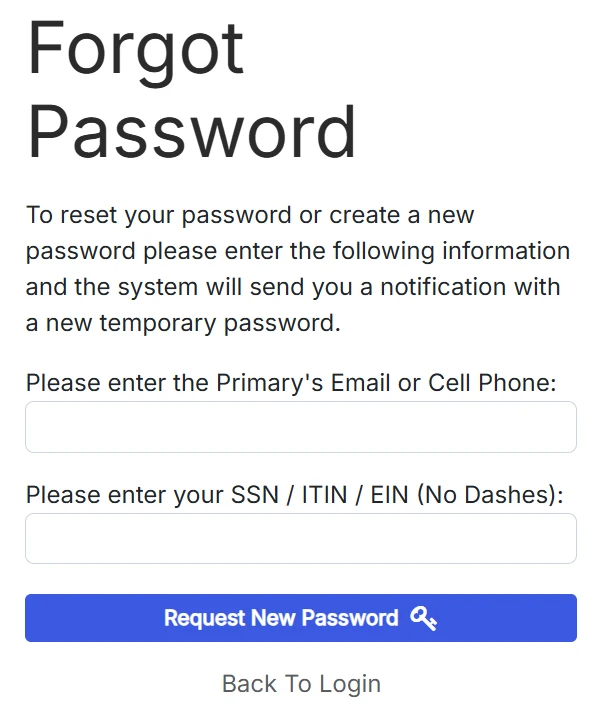
Enter the primary email address or cell phone number associated with your account, along with your SSN, ITIN, or EIN (without dashes). Then click Request New Password.
After submitting your request, you’ll receive an email or text message with a temporary password (for example, 3dO606D6). Return to the Client Portal login page and sign in using this temporary password. You’ll be prompted to create a new password before accessing your account.
Tip: If you don’t receive your temporary password within a few minutes, check your spam or junk folder. If you still need assistance, please contact SCL Tax Services.
Frequently Asked Questions
Visit the Client Portal login page and enter your SSN, ITIN, or EIN (without dashes) along with your password. Click Log In to access your account securely.
If this is your first time using the Client Portal, click Need a Password or Forgot Password? on the login page. Enter your email address and your SSN, ITIN, or EIN to receive a temporary password.
Click Need a Password or Forgot Password?, enter your primary email address or mobile phone number and your SSN, ITIN, or EIN (without dashes), then select Request New Password. A temporary password will be sent to you.
Return to the Client Portal login page and sign in using the temporary password you received. After logging in, you’ll be prompted to create a new password before accessing your account.
You can check your refund status, download tax returns, upload documents, send secure messages, request appointments, update your contact information, and access important tax documents.
Yes. The Client Portal is encrypted and password protected, making it a safer way to exchange sensitive tax information than sending documents through email.
First, check your spam or junk folder. If you still haven’t received your temporary password after several minutes, please contact SCL Tax Services for assistance.